

How to Upload Your Final Presentation Slides
Step 1
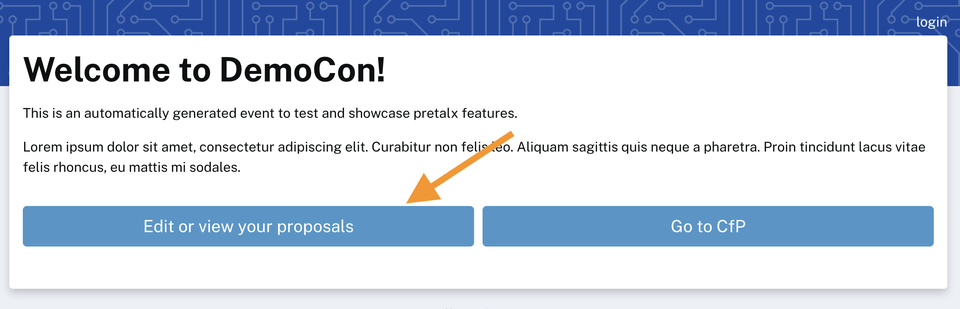
Navigate to https://pretalx.ripe.net/ripe-92/ and click the Edit or view your proposals button.

Step 2
Click on Log in with RIPE NCC Access. This requires two-factor authentication!
If you do not have two-factor authentication enabled, follow the instructions on this page to ensure that your account is properly set up.
Step 3
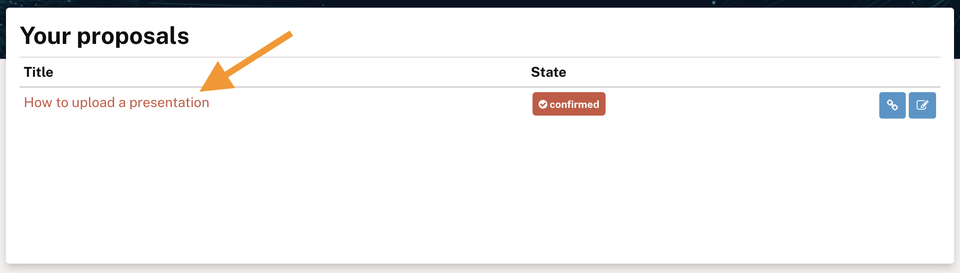
Choose the submission you wish to update by clicking on the title of the submission.
Step 4
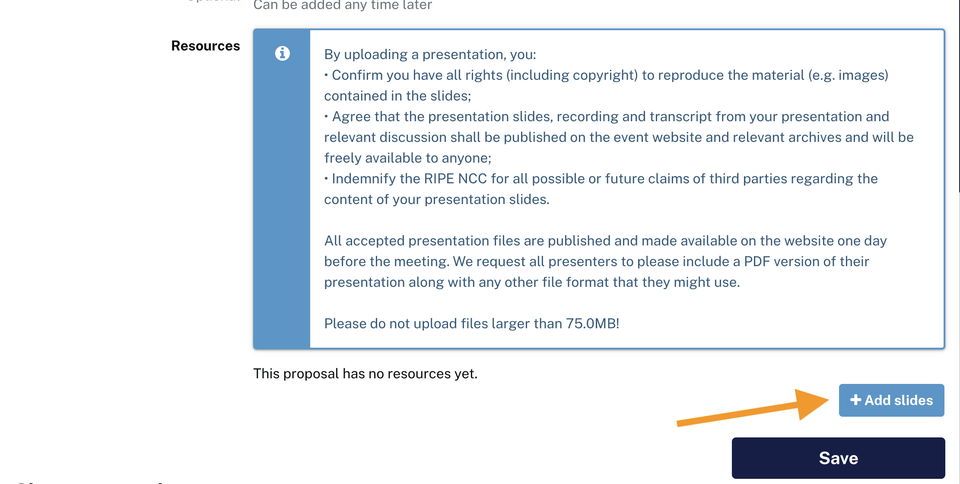
Scroll down the page to the Resources section.
Please read the notice carefully.
To add your presentation slides, click on the + Add slides button on the right.
Step 5
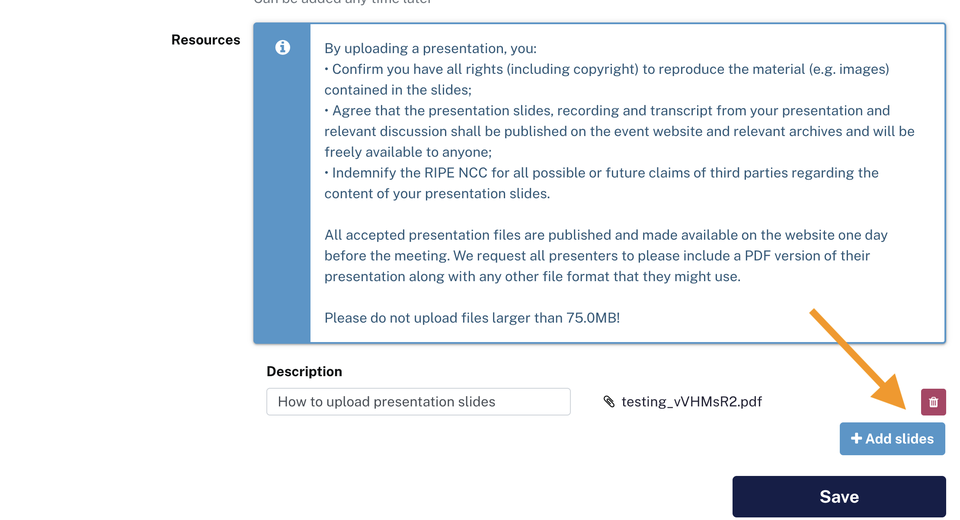
If you have already uploaded your slides and wish to update them, first delete the existing upload. Choose the red button with the trash can icon on the right to delete your old slides.
Upload your new slides using the Add slides button on the right.

Step 6
Finally, click Save to save your changes.